Resources / Audit access guide
Which account
are you sharing?
Choose your platform. Follow the steps to give Hyperdrive the access needed for your audit.
Keep a copy or share it with your team.
Choose a platform
Start with Meta if you run Facebook or Instagram ads.


Sales close after a call? See inquiry-to-order reporting.
Account access
Meta
Start here • Use the business portfolio that owns your assets
- Business settings
- Users
- Partners
- Add
Step 1
Open the right business
At business.facebook.com/settings, select the portfolio that owns your Facebook Page and ad account. The person adding a partner needs full control of that portfolio.
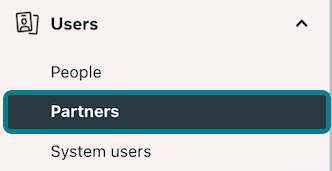
Hyperdrive’s archived Meta interface example. Choose Partners under Users. Step 2
Add Hyperdrive as a partner
Under Users, select Partners → Add → Give a partner access to your assets. Enter 1699069137080938. Confirm the displayed partner is Hyperdrive Lab before continuing.
Hyperdrive portfolio ID1699069137080938
Open Add to find the partner-sharing option. Step 3
Select the assets
Ad accounts → choose the one with campaign history → View performance. Pages → choose the brand Page → Insights. Instagram accounts → choose the connected professional account → Insights where available.
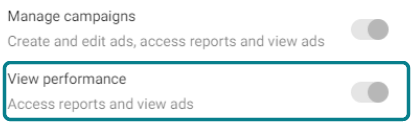
Select View performance
Select View performance for the ad account. Control names can vary by asset. Step 4
Include the website dataset
Select the dataset/pixel that receives the store’s events and grant Use events dataset if available. If missing here, open Data sources → Datasets (or Datasets and pixels), select the matching ID → Assign partner. This role can also permit some advertising uses.
Step 5
Save and accept
Choose Assign assets or Save changes. If a sharing agreement is pending, Hyperdrive’s admin accepts it in Requests. Ryan then assigns the appropriate team members.
Confirm access
Partners → Hyperdrive → Assigned assets should list the correct ad account and dataset. We’ll confirm campaign history in Ads Manager and event visibility in Events Manager. A missing Add button usually calls for the owning portfolio’s full-control admin.
Access levels and alternatives
Direct route: Users → People → Invite people. Enter the three team emails, choose basic/partial portfolio access and grant the same tasks on the same assets. Each person accepts the invitation with their Meta identity and completes any required two-factor check. Full control of an ad account or dataset adds powers such as managing campaigns or changing event setup.
Inviting the team directly?
Use these addresses for individual invitations. A partner request goes to Hyperdrive once.
Official instructions
Meta • Add partnersMeta • Invite peopleVisual walkthrough • Meta training example, pp. 17–20 (2024)Once you’ve shared access
Reply to Ryan with the platform and account name. He’ll check which assets the team can see.
Account access
Google Ads
Use the customer account that contains your active campaigns
- Customer ID
- Hyperdrive requests link
- You accept
Step 1
Find the customer ID
Sign in to ads.google.com. Select the account where you see your campaigns. Copy its 10-digit customer ID and send it to Ryan. Keep existing managers connected.
Step 2
Wait for our request
Hyperdrive enters your ID in its manager account under Accounts → Sub-account settings → + → Link existing account. Ryan will tell you when the request is ready.
Step 3
Approve the manager link
As a client account Admin, open Admin → Access and security → Managers. Find the link request, check the requesting manager’s name and choose Accept. Manager linking gives operational access. Administrative ownership is optional and unnecessary for this audit.

1. Open Admin
2. Open Access and security
3. Select Managers
4. Accept the expected request
Archived Google Ads interface from Hyperdrive’s guide. The live menu names are in the steps above. Step 4
Choose individual access for a read-only audit
Admin → Access and security → Users → +. Enter one team email, choose Read-only and send the invitation. Repeat for all three. Each person accepts using the matching Google Account.
Confirm access
Verify the manager appears in Managers or all three accepted invitations appear in Users. If the request is missing, compare the full customer ID on both sides and ask a client Admin to check.
Access levels and alternatives
Read-only is sufficient to inspect campaigns and conversion settings. Standard can change campaigns. Admin is the highest direct role and can also manage access and links. Use the individual route if you prefer to keep our audit access read-only.
Inviting the team directly?
Use these addresses for individual invitations. A partner request goes to Hyperdrive once.
Official instructions
Google • Link an existing accountGoogle • Invite a userGoogle • Compare access levelsOnce you’ve shared access
Reply to Ryan with the platform and account name. He’ll check which assets the team can see.
Account access
Google Analytics (GA4)
If installed • Select the production GA4 property
- Admin
- Property access management
- Add users
Step 1
Select the live website property
Sign in to analytics.google.com. Use the account/property picker. Confirm the property name and the web data stream correspond to your live store.
Step 2
Invite the team
As a property or account Administrator, open Admin → Property access management → + → Add users. Enter the three team addresses associated with Google Accounts.

1. Open Admin at the bottom left
2. Locate the Property settings area
Archived Analytics interface from Hyperdrive’s guide. Find Property access management under Admin. Step 3
Allow reporting and explorations
Select Analyst. Leave No Cost Metrics and No Revenue Metrics unchecked so the audit includes spend and revenue. Check Notify new users by email, then Add.
Step 4
Confirm visibility
The team signs in with the invited accounts. We’ll open acquisition and revenue reports and verify that the property contains recent traffic and purchase events.
Confirm access
Look up each email under Property access management. If + is missing, check the selected property and ask an Administrator. If no property exists, tell Ryan and move on.
Access levels and alternatives
Administrator is the highest property role and can manage users. Editor can change property settings. Analyst is sufficient for examining reports and sharing explorations. Grant at the property level to keep access scoped to this store.
Inviting the team directly?
Use these addresses for individual invitations. A partner request goes to Hyperdrive once.
Once you’ve shared access
Reply to Ryan with the platform and account name. He’ll check which assets the team can see.
Account access
Google Tag Manager
If installed • Use the container deployed on your live store
- Admin
- Container: User Management
- Invite
Step 1
Identify the container
Sign in to tagmanager.google.com. Select the website account and its live GTM- container. If you’re unsure, ask your existing implementer for the production container ID.
Step 2
Grant access to the container
As an account Administrator, open Admin. In the Container column, select User Management → + → Add users. Enter the three Google-account email addresses.
Step 3
Choose Read and invite
Select Read, then Invite. This lets us inspect tags, triggers, variables and versions. If an existing server-side container handles tracking, repeat for that specific container.

1. Open User Management in Container
2. Select Read for the audit
Archived Tag Manager interface from Hyperdrive’s guide. Select the live container before choosing Read. Step 4
Accept the invitations
Each person accepts by email or opens the GTM Accounts screen → Invitations → selects the invitation → Accept.
Confirm access
Confirm all three emails have Read on the correct GTM- ID. We’ll open its tags and triggers. If Shopify uses an app or native pixel instead, tell us how tracking is installed and skip GTM.
Access levels and alternatives
Publish is the highest container permission. It can deploy tracking code to the live site. Account Administrator can manage users and create containers. For the audit, container Read covers the inspection. Account User alone does not grant access to a container.
Inviting the team directly?
Use these addresses for individual invitations. A partner request goes to Hyperdrive once.
Official instructions
Google • Account and container permissionsOnce you’ve shared access
Reply to Ryan with the platform and account name. He’ll check which assets the team can see.
Account access
Klaviyo
Inspect email performance and attribution settings
- Settings
- Users
- Add new user
Step 1
Open the brand account
Sign in as the Owner or an Admin. Choose the brand’s account name (lower left) → Settings → Users. Some layouts group Users under General.
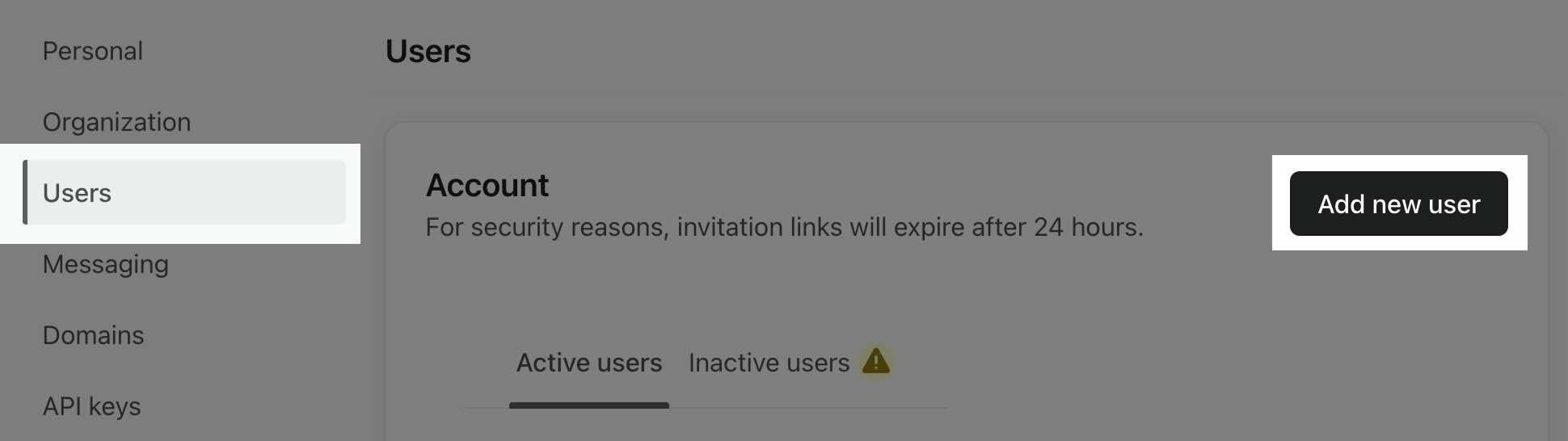
1. Open Users
2. Select Add new user
Official Klaviyo help example. Open the Users screen for the correct brand. Step 2
Create an audit role
Under Roles, choose Add. Name it Hyperdrive audit. Set Content to View and export and Account settings to View. Leave other categories at the lowest available access. Create the role.
Step 3
Invite each person
Users → Add new user → enter one team email → choose language → select the Hyperdrive audit role → Add User. Repeat for all three.
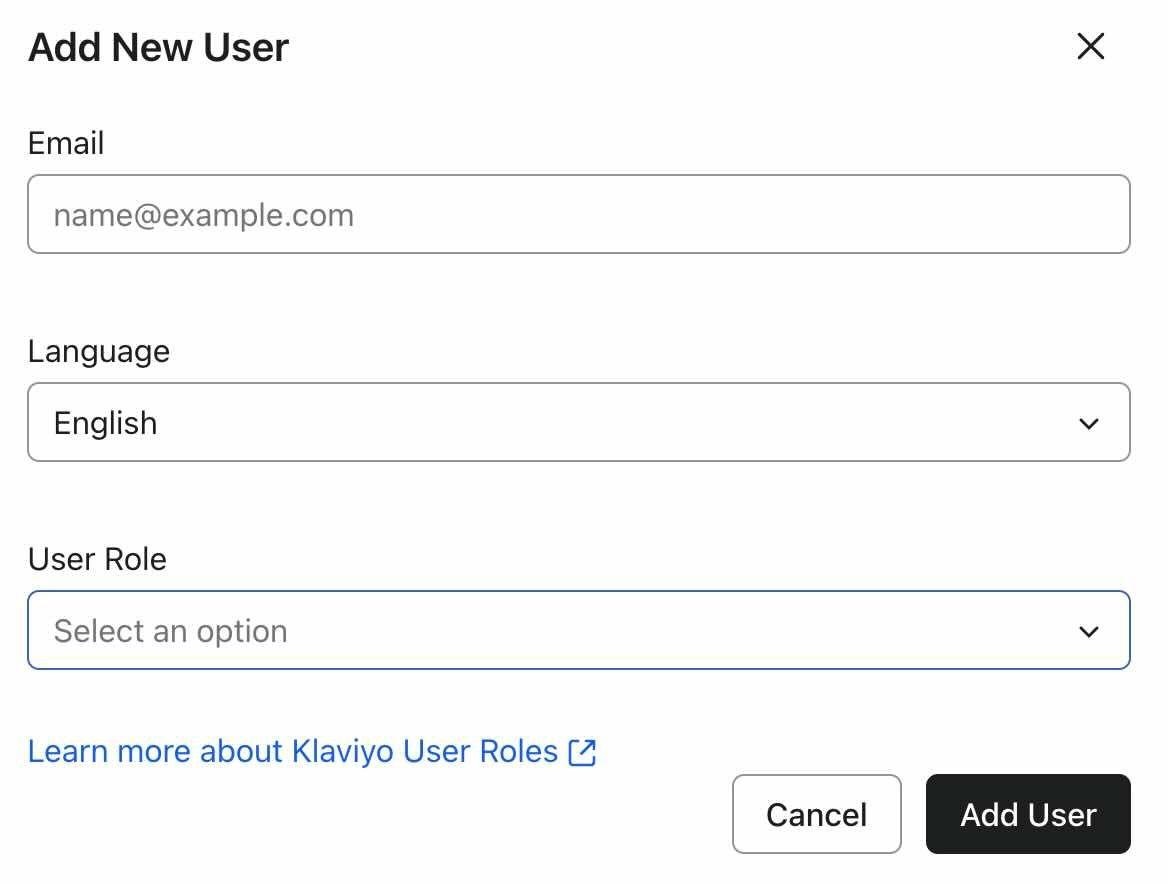
Email
Language
User Role: choose the audit role
Add User
Official Klaviyo help example. Choose the audit role and send one invitation per person. Step 4
Accept and check attribution
Each person opens the invitation email and signs in to the invited account. We’ll open a campaign report, a flow report and Settings → Attribution to confirm the attribution windows.
Confirm access
Under Users, check the status of each invitation. If one stays pending, check the address and resend. If the wrong brand opens, sign out of the other Klaviyo account before accepting.
Access levels and alternatives
Admin is the highest ordinary invitation and includes user and billing management. If a custom role is unavailable, Analyst can inspect performance. With Analyst access, also send Ryan a screenshot of Settings → Attribution. Manager grants broader editing powers including live marketing content.
Inviting the team directly?
Use these addresses for individual invitations. A partner request goes to Hyperdrive once.
Once you’ve shared access
Reply to Ryan with the platform and account name. He’ll check which assets the team can see.
Account access
Shopify
Match reported sales to actual store orders
- Collaborator code
- Agency request
- Review & accept
Step 1
Send Ryan the store details privately
In Shopify admin, open Settings → Users → Security → Collaborators. Copy the four-digit collaborator request code and send Ryan the code and original .myshopify.com domain. Older layouts say Users and permissions.
Step 2
Approve Hyperdrive’s request
We request access through our Shopify Partner account. In Shopify admin, open Settings → Users → Requests and select the expected Hyperdrive request.
Step 3
Choose the store permissions
Review Roles. Include Analytics → Dashboards and Reports, plus Orders → View so we can match sales with qualified inquiries. Reports access also allows report creation. Accept the request.
Step 4
If you need to invite staff directly
On a plan with staff seats, go to Settings → Users → Add users → Admin user. Add each team email, assign a role with the store permissions above and save. Each recipient accepts within seven days. Basic and Starter stores should use collaborators.
Confirm access
Under Users, check that the agency is active. We’ll open Analytics → Reports → Performance by marketing channel, review its attribution model if available, and match a sample order to the lead record. If the request code fails, check the code and original store domain.
Access levels and alternatives
The store owner approves collaborator access and keeps ownership. A broad administrator role can manage users and store settings. Use the listed analytics and order permissions for this review. Partner users must have two-step authentication enabled.
Inviting the team directly?
Use these addresses for individual invitations. A partner request goes to Hyperdrive once.
Official instructions
Shopify • Collaborator accountsShopify • Invite usersShopify • Store permissionsOnce you’ve shared access
Reply to Ryan with the platform and account name. He’ll check which assets the team can see.
Account access
Inquiry-to-order reporting
Optional • Useful when a sale closes by phone or after a design consultation
- Inquiry date
- Consultation
- Paid order
Step 1
Trace one completed consultation
Show us where a submitted consultation goes, who follows up, and where the order is recorded. A brief screen share is enough to start.
Step 2
Use a small sample
For a few won and lost inquiries, include a reference ID, creation date, recorded source, qualification status and, where applicable, order ID, date and net amount. Leave out phone numbers, emails and message text. Share privately.
Step 3
Mark existing opportunities
Flag any lead that was already in conversation before advertising began. Use its original inquiry date when comparing it with a later purchase.
Step 4
Close the audit loop
We’ll compare campaign and email reports with the store orders, identify tracking gaps and return with a proposed first test, its budget and what would count as success.
Confirm access
One paid order can be traced back to the first recorded inquiry. Record any unknowns instead of guessing which channel earned the sale.
Access levels and alternatives
If lead status lives in a chat app, CRM or spreadsheet, tell Ryan its name. We’ll ask for the narrowest useful report once we know how your team uses it.
Once you’ve shared access
Reply to Ryan with the platform and account name. He’ll check which assets the team can see.
Source guide reviewed November 19, 2026. Archived screenshots are labeled; follow the menu names in the written steps. Questions? Email Ryan.